Docker, Docker Compose, Portainer
Installation, Konfiguration, ...
Installation Docker, Docker Compose, Portainer
- Updrade LXC
- apt update && apt upgrade -y
- Installation Docker
- apt install docker.io curl -y
- docker --version
- Installation Docker Compose
- curl -SL https://github.com/docker/compose/releases/download/v2.12.2/docker-compose-linux-x86_64 -o /usr/local/bin/docker-compose
- chmod +x /usr/local/bin/docker-compose
- Installation Portainer
- docker volume create portainer_data
- docker run -d -p 8000:8000 -p 9443:9443 --name portainer --restart=always -v /var/run/docker.sock:/var/run/docker.sock -v portainer_data:/data portainer/portainer-ce:latest
- Installation von Containern über Portainer
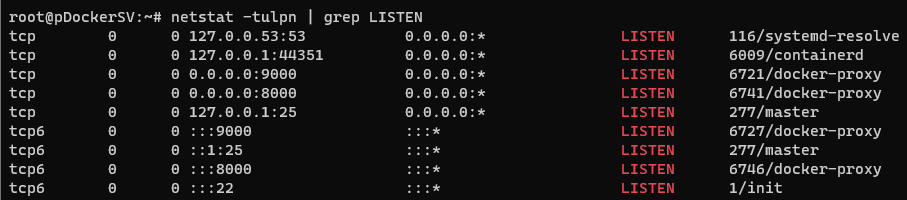
- Das Deployment kann scheitern, wenn gewählte Ports durch andere Container oder Linux bereits belegt sind. Anzeigen der belegten Ports über
netstat -tulpn | grep LISTEN
-
Ergebnis:
-
- Massnahme:
systemctl disable systemd-resolvedsystemctl stop systemd-resolved-
belegten Port freigeben und spätere erneute Belegung disablen
-
- Das Deployment kann scheitern, wenn gewählte Ports durch andere Container oder Linux bereits belegt sind. Anzeigen der belegten Ports über
Portainer und Docker Hub
- Portainer starten
- https://192.168.0.183:9000 - IP LXC:Standard Port - Password raumPunkt#1604
- Pfade AppTemplates
- https://raw.githubusercontent.com/portainer/templates/master/templates-2.0.json
- https://raw.githubusercontent.com/pi-hosted/pi-hosted/master/template/portainer-v2-amd64.json
- https://raw.githubusercontent.com/technorabilia/portainer-templates/main/lsio/templates/templates-2.0.json
- über diese Templates kann man sich Container über Portainer installieren - z.B. PiHole
- Docker Hub
- https://hub.docker.com
- Installation eines PiHole Containers über Docker Hub und docker-compose up -d
- search pihole
- nano docker-compose.yml
- insert:
- https://hub.docker.com
version: "3"

# More info at https://github.com/pi-hole/docker-pi-hole/ and https://docs.pi-hole.net/
services:
  pihole:
    container_name: pihole
    image: pihole/pihole:latest
    # For DHCP it is recommended to remove these ports and instead add: network_mode: "host"
    ports:
      - "53:53/tcp"
      - "53:53/udp"
      - "67:67/udp" # Only required if you are using Pi-hole as your DHCP server
      - "80:80/tcp"
    environment:
      TZ: 'America/Chicago'
      # WEBPASSWORD: 'set a secure password here or it will be random'
    # Volumes store your data between container upgrades
    volumes:
      - './etc-pihole:/etc/pihole'
      - './etc-dnsmasq.d:/etc/dnsmasq.d'
    #   https://github.com/pi-hole/docker-pi-hole#note-on-capabilities
    cap_add:
      - NET_ADMIN # Required if you are using Pi-hole as your DHCP server, else not needed
restart: unless-stopped-
-
- STRG-O Datei speichern
- STRG-X nano editor verlassen
docker-compose up -d
-
Interessante Container Apps
- PiHole
- Invidious
- Youtube Clone ohne Werbung
- git clone https://github.com/iv-org/invidious.git
- cd invidious
- Link zum Docker-Compose File https://docs.invidious.io/installation/
- Whoogle
- Suchmaschine ohne Werbung
- Installation über
- sudo apt update && sudo apt upgrade -y
- sudo apt install docker.io ufw
- sudo usermod -aG docker username
- sudo ufw allow 22/tcp
- sudo ufw enable
- docker run --restart=always --publish 5000:5000 --detach --name whoogle-search benbusby/whoogle-search:latest
- ip a
- sudo ufw allow 5000/tcp
- http://192.168.0.183:5000/
-